Check how a story is covered
On this page
This guide is for the moment you read a claim and want to know how others reported it. You start from one report, open Full coverage to see the same story from other outlets, look at who those outlets are, narrow the list by date and tone, and check the Web column for official pages.
#Start from one report
Search the News tab for the story, with the names and places it mentions. Then read the result card before you open it.
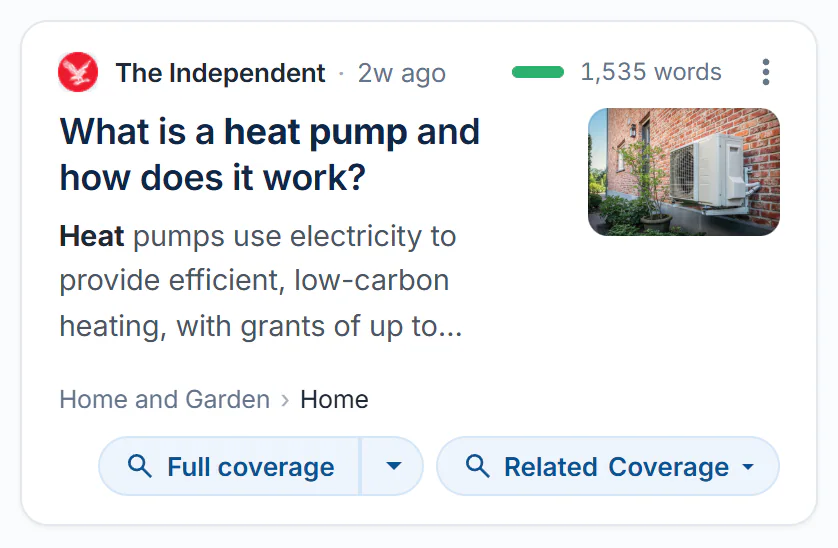
A result card: the source, age and tone bar on the first line, then the headline, the topic path and the coverage buttons.
- 1Source, age and website
- 2Tone bar and length
- 3Options menu
- 4Headline, summary and picture
- 5Topic path
- 6Full coverage and Related Coverage
- The source line names the outlet and says how long ago it published.
- The tone bar shows how positive the wording reads, and the number beside it is the article's length in words.
- The topic path shows where 4Search filed the story.
See Read a result card.
#Open Full coverage
-
On the card, select Full coverage.
-
The headline becomes your search, and the list shows other reports whose headlines mean the same. The article you started from is usually first; read past it.
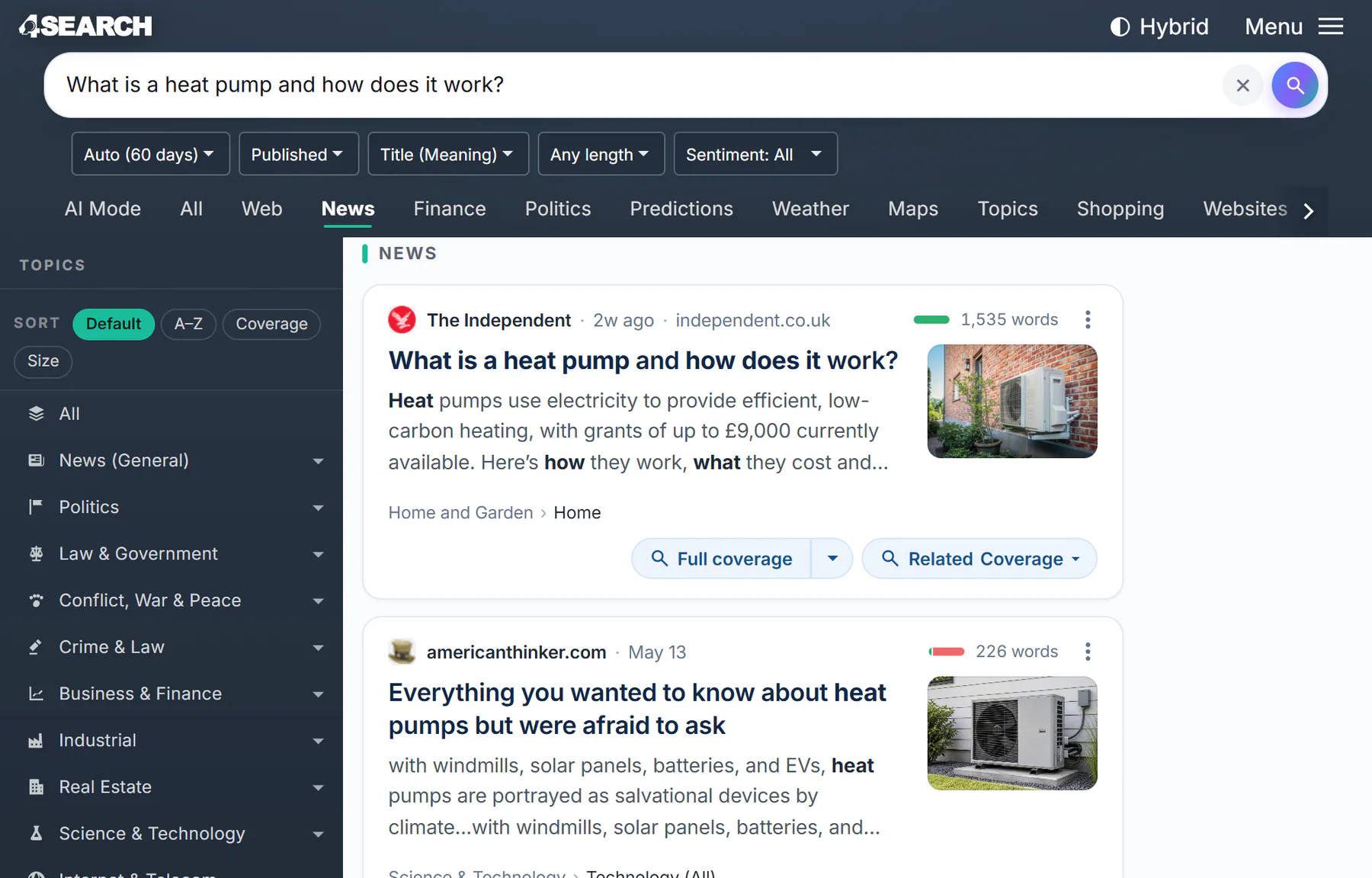
After Full coverage: the headline is the search, and the list shows other outlets' reports.
- 1The headline is now the search
- 2The date menu is back on Auto
- 3Reports with a similar headline
-
If the headline is broad and the list wanders, select the arrow beside Full coverage and choose a level of the card's topic path to search only inside it.
-
To follow the people or places instead, open Related Coverage and choose a line such as by People or by Places.
Full coverage compares headlines, not whole articles, and finds only what is in the 4Search index. See Full coverage and Related Coverage.
#Count the outlets and know who they are
On the front page, each story card says how many outlets carry the same story. In a Full coverage list, the source lines tell you who reported it.
For an outlet you do not know, select its name on a card. Its website profile shows how much it publishes, how recently, how long its articles run and what it covers most.
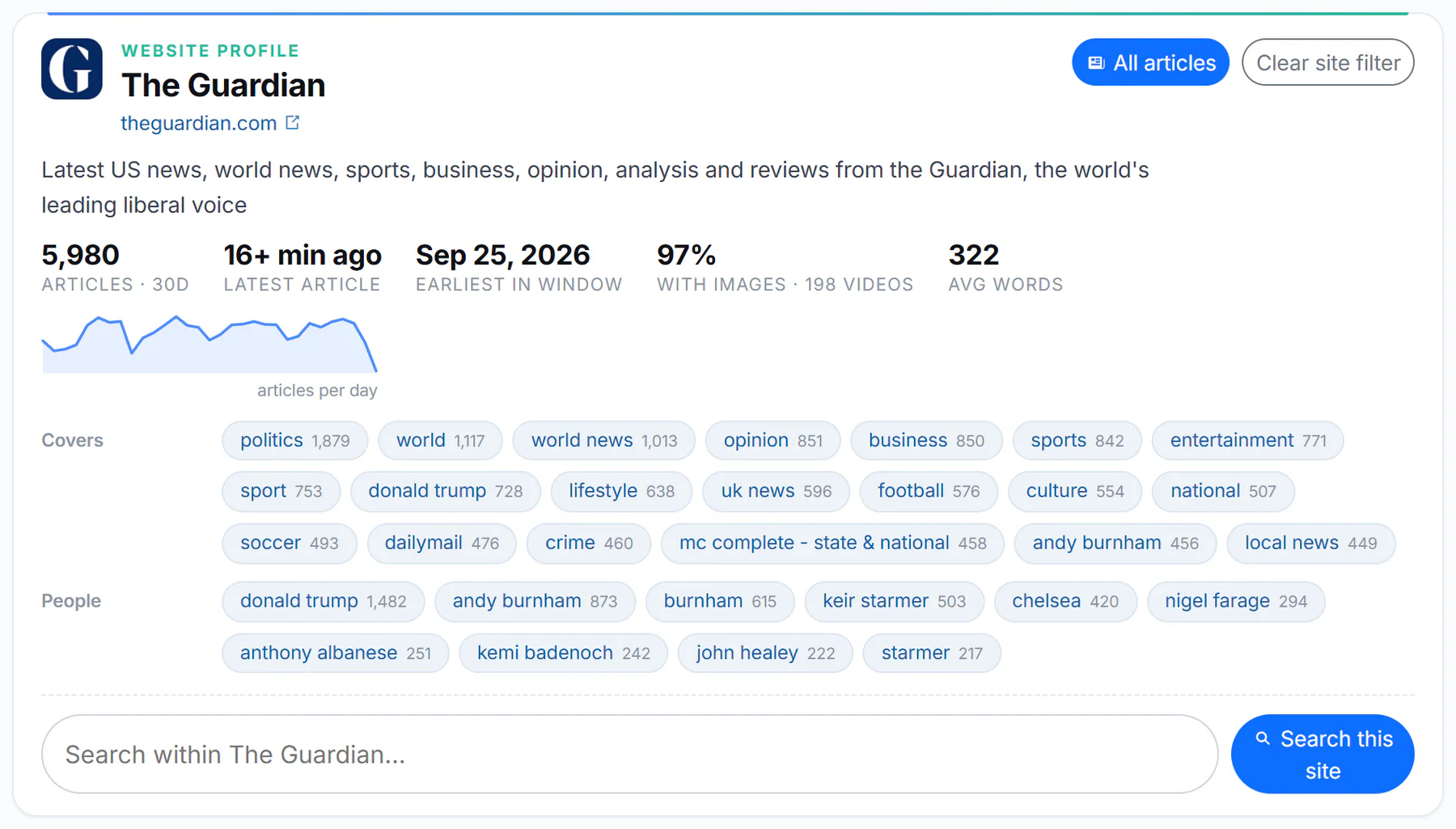
A website profile: the numbers for the period, what the site covers and a box to search only that site.
- 1Site name and address
- 2All articles, or clear the site filter
- 3Numbers for the period
- 4Topics it covers: each is a search
- 5Search within the site
A profile describes what a site publishes; it does not rate its accuracy. Select Clear site filter to go back to every site. See Find a website.
#Narrow by date and tone
The filter row under the search box works on a Full coverage list too.
- In the date menu, choose 24 hours or 7 days for the latest reports, or a longer range to see how the story began.
- Choose Published to count from each article's own date, or Discovered for what 4Search found recently, including updated pages.
- Open Sentiment and tick the numbers you want, from 1 (most negative) to 10 (most positive), to compare the upbeat and the grim reports.
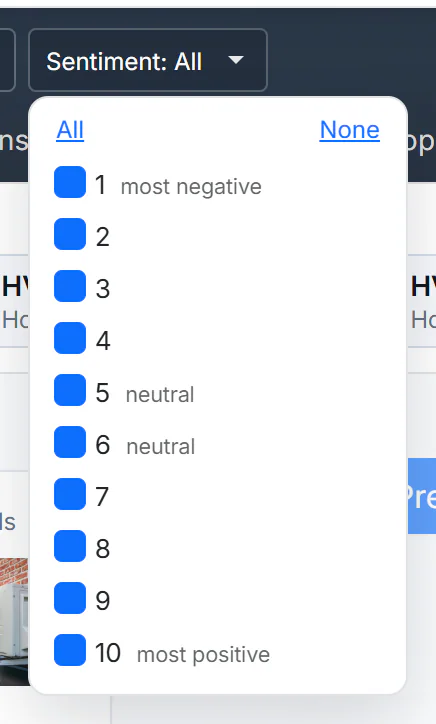
All ten boxes are ticked by default, which means no filter.
- 1Shows what is ticked
- 2Tick all or none
- 31 is the most negative
- 410 is the most positive
Tone is an automatic estimate of the wording, a guide to mood and not a verdict on fairness. Articles without a tone bar are left out once you narrow the sentiment. See Narrow results with filters and Choose a time window.
#Check the Web column
On the All tab, the Web column sits beside the news with Google-hosted web results: official sites, reference works and the original documents a story is about.

With Apply to web ticked, the date you choose also narrows the Web column.
- 1These filters are for News
- 2Apply to web: the date also narrows Web
- 3Open in News: the same search on the News tab
- 4What was added to the web search
- Add
site:and an address to see one source on the web, such assite:energy.gov. The News column keeps searching your other words. - A Web result has its own Full coverage button, which searches the 4Search index for articles with a similar headline.
See The Web column and Google-style operators.
#Common questions
Does Full coverage tell me whether a story is true?
No. It shows how the story was reported, by whom and in what tone. Many outlets carrying a story is not proof, and one outlet alone is not disproof. Read the reports and the original sources.
Can I see only one outlet's coverage?
Yes. Select the three dots on one of its cards and choose Search this website.